These are the stickman video prompts from the Reel. Each step tells you exactly what to copy, where to paste it, and what to do next.
Quick answer: how to make a stickman video with AI
A stickman video is a faceless video made of simple black stick figure scenes, usually 15 to 60 seconds long, for YouTube Shorts, Instagram Reels or TikTok. You do not need a camera or drawing skill.
To make stickman videos with AI, copy and paste in this order:
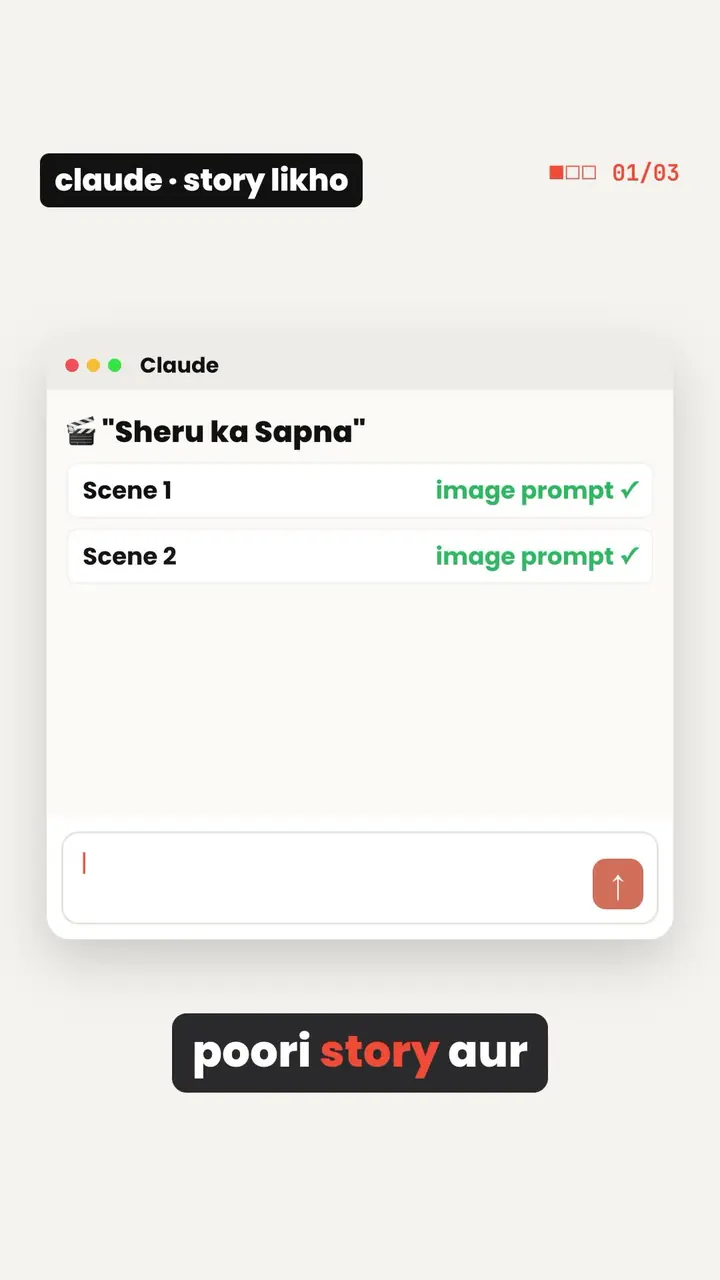
- Open Claude, paste Prompt 1, and get a 1 minute story plus 6 scene image prompts.
- Open ChatGPT, paste each image prompt, and end every one with
simple black stick man white background. - Open Google Flow, upload each image, and paste a short motion prompt such as
Make it move. - Open ElevenLabs (or your own mic) and make the narration.
- Open CapCut, join the six clips, add captions, and export in 9:16.
The prompts below are ready to copy. Swap anything in [BRACKETS] so the story is yours.
Key takeaways
- A locked style line, used on every image, is what keeps a stickman animation consistent.
- Short motion prompts in Google Flow usually work better than long ones.
- Tools can be tried for free, but they are not all fully free once you make several videos.
- Original stories and your own voice matter, because platforms limit repetitive, reused content.
- Test one scene all the way through before you make all six.
What you need
| Tool | You use it to | Cost, honestly |
|---|---|---|
| Claude | Write the stickman story and scene prompts | Free plan with daily limits, paid plans for more use |
| ChatGPT | Make the 6 stickman images | Free image use is limited, more on paid plans |
| Google Flow | Turn still images into short stickman animation | Needs a Google account and uses credits, limits can change |
| ElevenLabs | Make an AI voice for the story | Free monthly credits, paid plans for more audio |
| CapCut | Join clips, add captions and export 9:16 | The free version covers this edit, some effects are paid |
Pricing changes often. The Reel calls these free tools because you can try each one at no cost. A full stickman video can still use up a free plan quickly.
Step 1: Open Claude and write a stickman story
DO THIS
- Open Claude.
- Copy Prompt 1 below.
- Paste it into Claude.
- Swap the words in [BRACKETS] for your own story idea.
- Hit enter.
Write a 1 minute story about [a stick man who wants to learn a new skill / your own idea].

Rules:
- Exactly 6 scenes.
- For each scene give me: (a) the narration, 1 to 2 short sentences in simple English, and (b) an image prompt.
- Every image prompt must describe only ONE simple scene with ONE stick man, a clear action and at most two props. No text inside the image.
- The stick man must look the same in every scene: a plain black line stick man with a round head.
- End every image prompt with exactly this sentence: simple black stick man white background
- Scene 1 is the hook, scene 6 is a clear ending.
- Output the 6 scenes as a numbered list so I can copy each image prompt separately.
THEN
Claude will give you a one minute stickman story and 6 ready image prompts. Keep this chat open. In Step 2 you will paste those image prompts into ChatGPT, one at a time.
If you want the spoken story in another language, add this line to Prompt 1 before you hit enter: Write the narration in [language], but keep the image prompts in English.
MAKE IT YOURS
Do not publish the sample "broken bridge" story on your channel. Put a topic from your niche in [BRACKETS], such as a money habit, a kitchen fail, or a gym excuse. One clear problem and one clear ending is enough. That is how a faceless stickman channel stays yours, not a copy of someone else's Reel.
Step 2: Open ChatGPT and make 6 stickman images
DO THIS
- Open ChatGPT. Use the same chat for all 6 images so the style stays close.
- Copy one scene image prompt from Claude, or copy a sample prompt below to test.
- Paste it into ChatGPT. The last line must stay exactly:
simple black stick man white background. - Generate the image and save it.
- Repeat for all 6 scenes, one prompt at a time.
simple black stick man white background
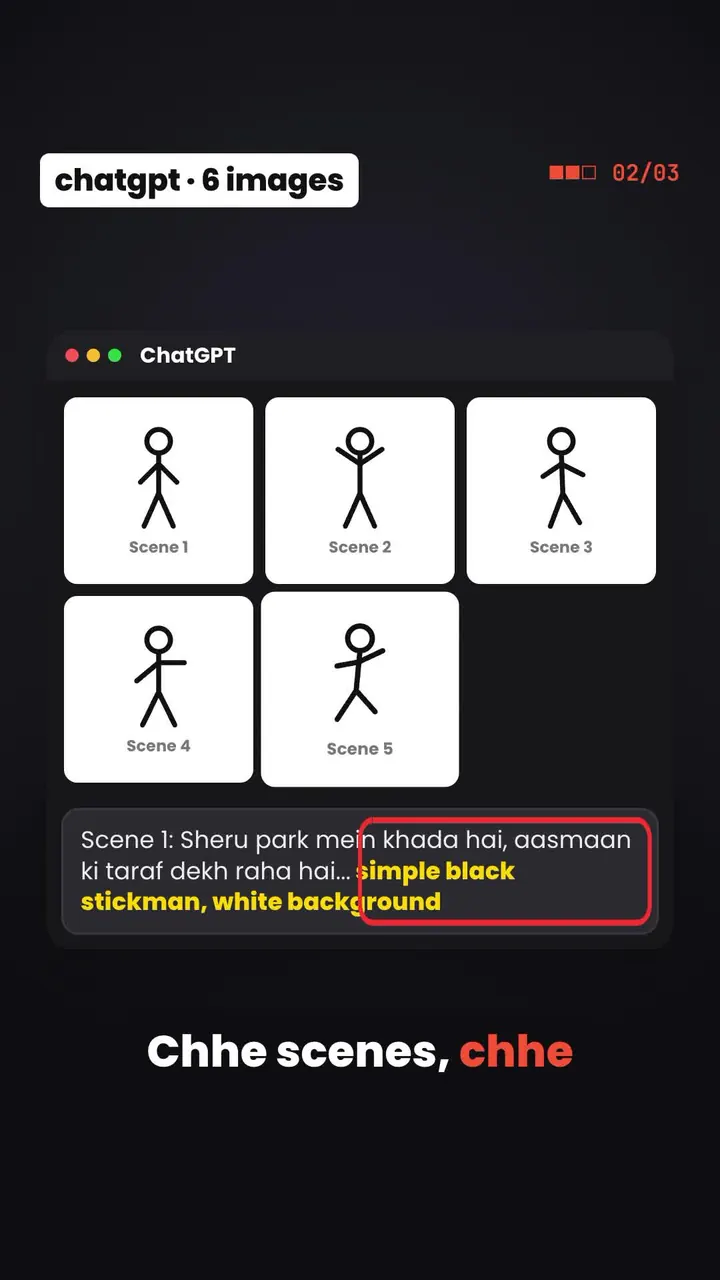
Here are 6 complete sample prompts you can copy to test your setup. After the test, replace them with the prompts Claude wrote for your story.
A stick man stands at the edge of a river looking at a broken wooden bridge with a big gap in the middle, one small question mark above his head, simple black stick man white background
The stick man tries to jump over the gap and is frozen in mid air with his arms stretched wide, the river below, simple black stick man white background
The stick man sits on the ground with his head in his hands next to a small pile of wooden planks, simple black stick man white background
The stick man carries one wooden plank towards the bridge gap, determined walking pose, simple black stick man white background
The stick man places the last plank and the bridge is almost complete, he looks tired but proud, simple black stick man white background
The stick man walks across the finished bridge with one arm raised in a small victory wave, simple black stick man white background
If one image comes out with shading, a busy background, or a different looking character, copy Prompt 8 into the same ChatGPT chat.
Regenerate the last image. Keep the same plain black line stick man with a round head, no shading, no colour, no background details, pure white background. Keep the same scene and action as before.
THEN
You should now have 6 stickman images in one style. Download them. Next, you will animate each still image in Google Flow.
MAKE IT YOURS
Want a look that is not the default black-on-white? Change the style line for every scene, not just one. Example: simple red stick man cream background. Add one signature prop that belongs to your channel, such as a bag, a cap, or a flag, and repeat it in every scene. Do not copy another creator's character.
Step 3: Open Google Flow and animate each image
DO THIS
- Open Google Flow.
- Upload one stickman image.
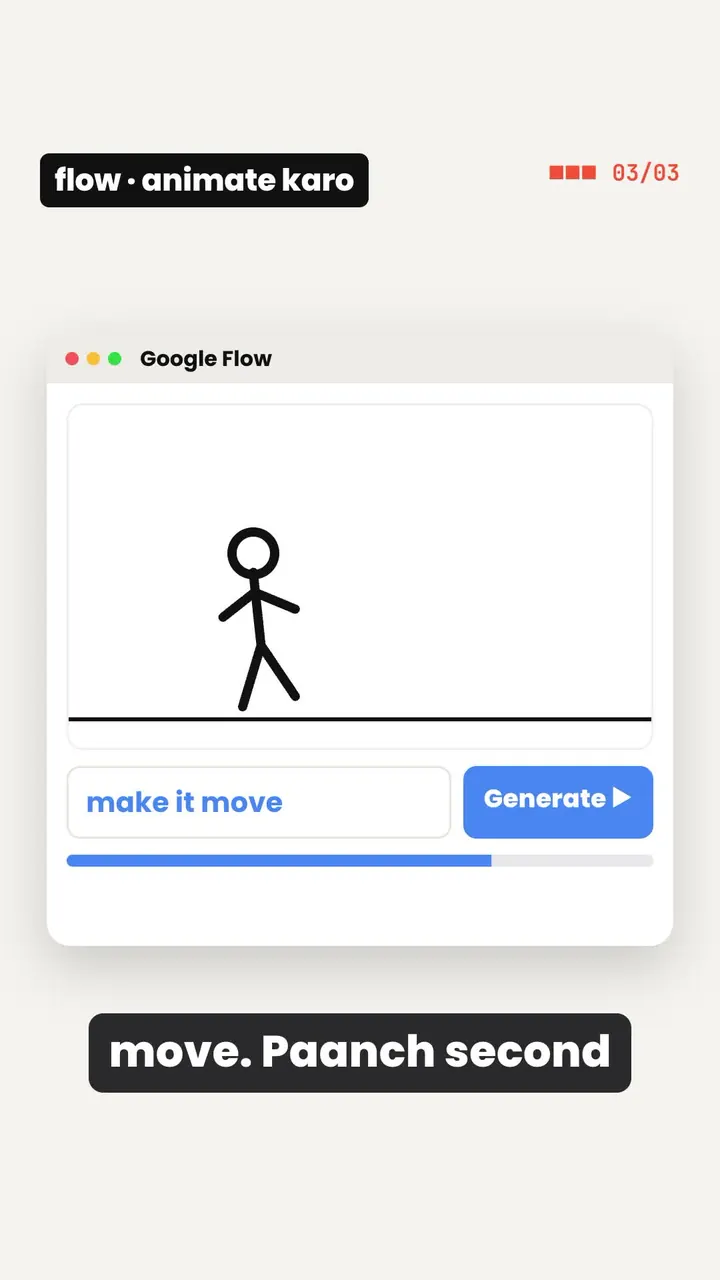
- Copy a motion prompt below. Start with Prompt 9, the same short line used in the Reel.
- Paste it, generate, and save the clip (about 5 seconds).
- Repeat for all 6 images. If a clip looks wrong, generate it once more.
Make it move
The stick man walks slowly from left to right with simple natural arm movement. Camera stays still. Keep the pure white background and the plain black line style. No new objects.
Slow gentle zoom in on the stick man while he makes a small emotional gesture. Keep the same plain black line style and pure white background.
The stick man shakes his head and drops his shoulders in disappointment, then looks up with a small hopeful nod. Camera stays still. Keep the same plain black line style and white background.
THEN
You should now have 6 short stickman animation clips. Pick the best take of each scene, then make the voice in Step 4.
MAKE IT YOURS
Do not use the same walk on all six scenes. Match the motion to your story: a stumble, a wave, a sit-down, a jump. A locked camera and a still white background help the clips cut together like one stickman animation, not six random generations.
Step 4: Open ElevenLabs and make the voice
DO THIS
- Go back to your Claude chat.
- Copy Prompt 13 below, paste it, and hit enter to get a clean narration.
- Open ElevenLabs.
- Paste the narration, pick a voice, and generate the audio.
- Listen once all the way through. If a word sounds wrong, change the spelling and generate again, then download the file.
Take the narration of the 6 scenes above and combine it into one smooth voiceover script of about 130 to 150 words. Keep the sentences short, calm and clear. Do not mention scenes, image prompts or camera. Add a one line hook at the start and a one line closing at the end.
THEN
You now have a voice file that matches your 6 clips. Next, you will put everything into CapCut.
MAKE IT YOURS
If you can, record the voice yourself. If you use ElevenLabs, pick a voice that fits your language and rewrite the script so it sounds like you talk. A unique voice is one of the simplest ways to keep a faceless stickman YouTube channel from looking copied.
Step 5: Open CapCut and join the stickman clips
The Reel does not show the CapCut interface. It does show the finished 9:16 video. Follow these steps in CapCut (or any editor you already use).
DO THIS
- Open CapCut and start a new 9:16 project.
- Place the 6 Google Flow clips in story order and trim each one to the narration.
- Add the ElevenLabs audio (or your own voice).
- Turn on auto captions and fix any wrong words.
- Add very light background music, quieter than the voice.
- Keep captions off the very bottom and the right side, so app buttons do not cover them.
- Export in 9:16 and watch it once on your phone before you post.
THEN
Your first faceless stickman video is ready to post as a Short, Reel or TikTok. For the next one, start again at Step 1 with a new idea in [BRACKETS].
MAKE IT YOURS
Write the hook and the sign-off in your own words. Mention a detail your viewers already know from your niche. Platforms limit repetitive, mass produced stickman videos, so a story only you would tell matters more than a new tool.
Get more prompt packs
I add a new prompt pack with every Reel. Join the email list below and you get a mail when the next one is live. You can also see all packs on the AI Prompts hub, including the Claude AI Shorts team setup.